
13 tricks to solve the iOS 11 high power consumption problems!
A lot of our customer complaint that the iPhone, iPad or iPod Touch devices have high power consumption after they upgraded to iOS 11 compared with iOS 10.
if you have such trouble, quickly go through this tricks to identify problems and improve power draining situation.
-
Find the most high power consumption APP method
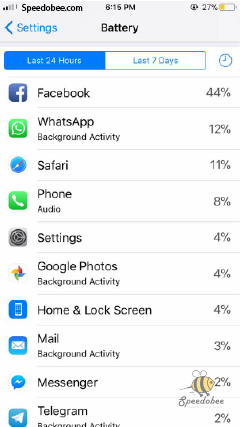
How can you know which apps in iOS are currently consuming the most?
This feature has been built into the system since iOS 8. Users can easily check their devices by battery usage to find out which APP is the culprit in the most power consumption, Usually, LINE or Facebook and Whatsapp will be the top two.
Location: Settings > Battery
-
Turn off the system location service
There are hidden system service positioning features within iOS 11, but some of them have no use and can be turned off directly.
Location: Settings> Privacy> Location Services> System Services “Share My Location, Location Based Apple Ads, Wi-Fi Networks, Nearby Top Apps, iPhone Analytics”. Please turn off these 5 options.
-
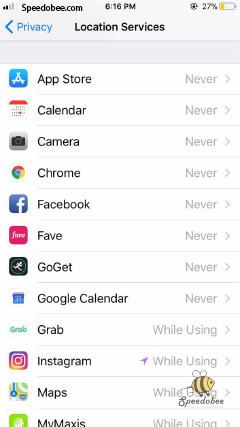
Turn off APP Location Service
Some APP simply does not need the location, and positioning does not have any subsidy effect, such as music, open air and so on. You can turn off the location based on your usage.
Location: Settings> Privacy> Location Services, select the APP you want to turn off Location Services and change them to Never.
-
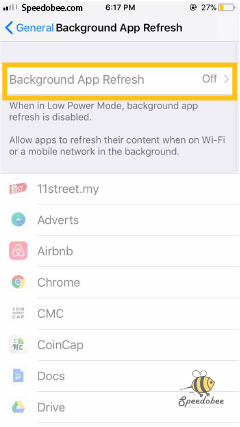
Close the background App refresh
This function is to help to refresh the content in the background and to update the APP. Please turn off this function if you want to save power.
Location: Settings> General> “Background App Refresh” to close the “Background App Refresh” item.
-
Disable Handoff and suggested App
Handoff mainly cooperates with the functions of other iOS devices and MAC systems so that devices and devices can communicate with each other. This function is only suitable for iOS 10 and macOS. If not, it is recommended to turn off this function.
Location: Settings> General> Handoff, turn “Handoff” off.
-
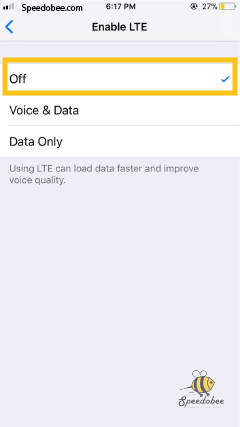
Turn off the 4G mobile network
We Found that although mobile carrier mentioned that they have 4G, but most of the time the 4G signal is weak and slow. We would recommend turning off Mobile LTE if your area is not covered by 4G, as 4G consume far power than 3G!
Location: “Settings”> “mobile data” > “mobile data options” > the “Enable LTE” to close.
-
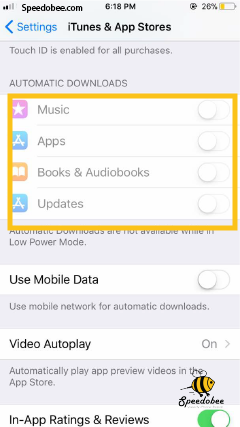
Turn off automatic download
This lets AppStore download all APP update as soon as they launch. This feature will continue to confirm whether the AppStore have updates. However, it causes power consumption, it is recommended to turn off directly and use manual download instead
Location: Settings> iTunes & App Store, turn off automatic downloads
-
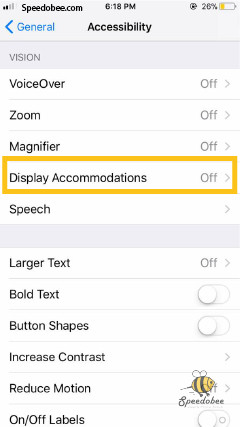
Turn off automatically adjust the brightness
iOS 10 will automatically detect the ambient brightness in different indoor and outdoor environments and immediately adjust the screen brightness. If you do not find it necessary to automatically adjust the brightness, it is recommended to turn this feature off.
Location: iOS 11 has been changed to “Settings”> “General”> “Accessibility” > “display accommodations” >”auto brightness” > turn off
▼ there will be an “automatic brightness adjustment” option.
-
Turn off AirDrop
Same with iOS 10, it is recommended to turn off AirDrop on iOS11 when you are not using. Otherwise, it’s a fairly high power consumption.
Location: From the bottom, slide out the control center and press the “Integrated Network Control” block> “AirDrop” in the upper left corner.
Click AirDrop “Close Receipt” and open AirDrop again if necessary.

-
Turn on “flight” mode while you are asleep
When you sleep, please turn on “flight” mode. Although this feature will disable all phone call, for non -24- hour standby occupation this feature can significantly reduce the consumption rate from 10% per night to 1% to 3%. Try not to sleep near to the phone to avoid radiation.
-
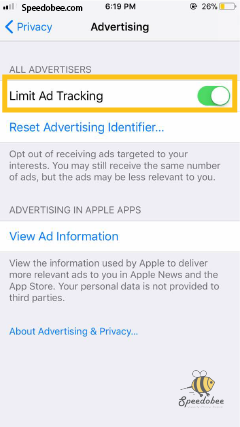
Limit ad tracking
This ad tracking is built in order to provide the best advertising experience. Hence the Ads will be shown based on your interests. If you want to opt-out of showing ads based on interests, you may turn on this function.
Location: Settings> Privacy> Advertising Turn on the “Limit Ad Tracking” feature.
-
turn off the transparency effect (for the older model)
For older models (iPhone 5s, iPad mini2) to display blur effect is quite power draining.
Location: Settings> General> Grant Usage> Increase Contrast Turn Reduce Transparency on.
When we close it, the entire transparent blur effect will be completely shut down, the effect will become the bottom of the state, for newer iPhone, you do not have to turn off this feature because it does not make big difference.
-
turn off the contrast features (for the older model )
iOS 11 will automatically start the dynamic effects, will be found in the open app or jump back to the main screen zoom effect, this effect is very resource-consuming. Also, it will cause your device to be slow and Lag.
Location: Settings> General> accessibility > Increase contrast > reduce transparency
The tricks simply don’t work for you? maybe it’s time to change your battery, the average time span of a battery is around 1 to 2 years. Get it change at your doorsteps , call 019-2531667 , book now or visit our facebook page at www.facebook.com/speedobee